The headline feature of this release is the Screen Reader, in both apps on Android: it reads the Chinese in whatever another app is showing.
Screen Reader (Android only)
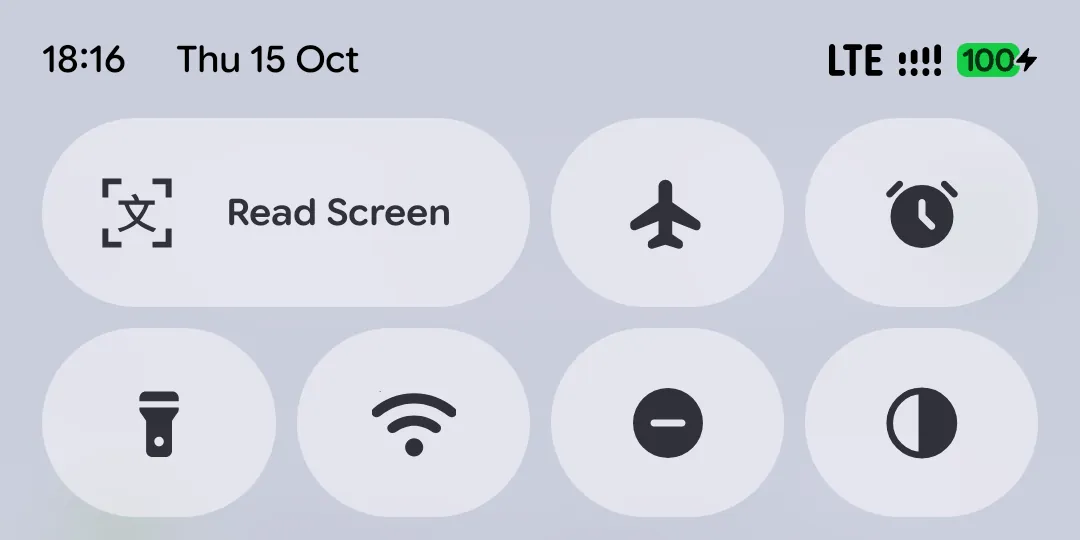
Watching a video with Chinese subtitles, reading a chat, or playing a game whose text you can’t copy? Pull down Quick Settings and tap Hanping’s Read Screen tile.
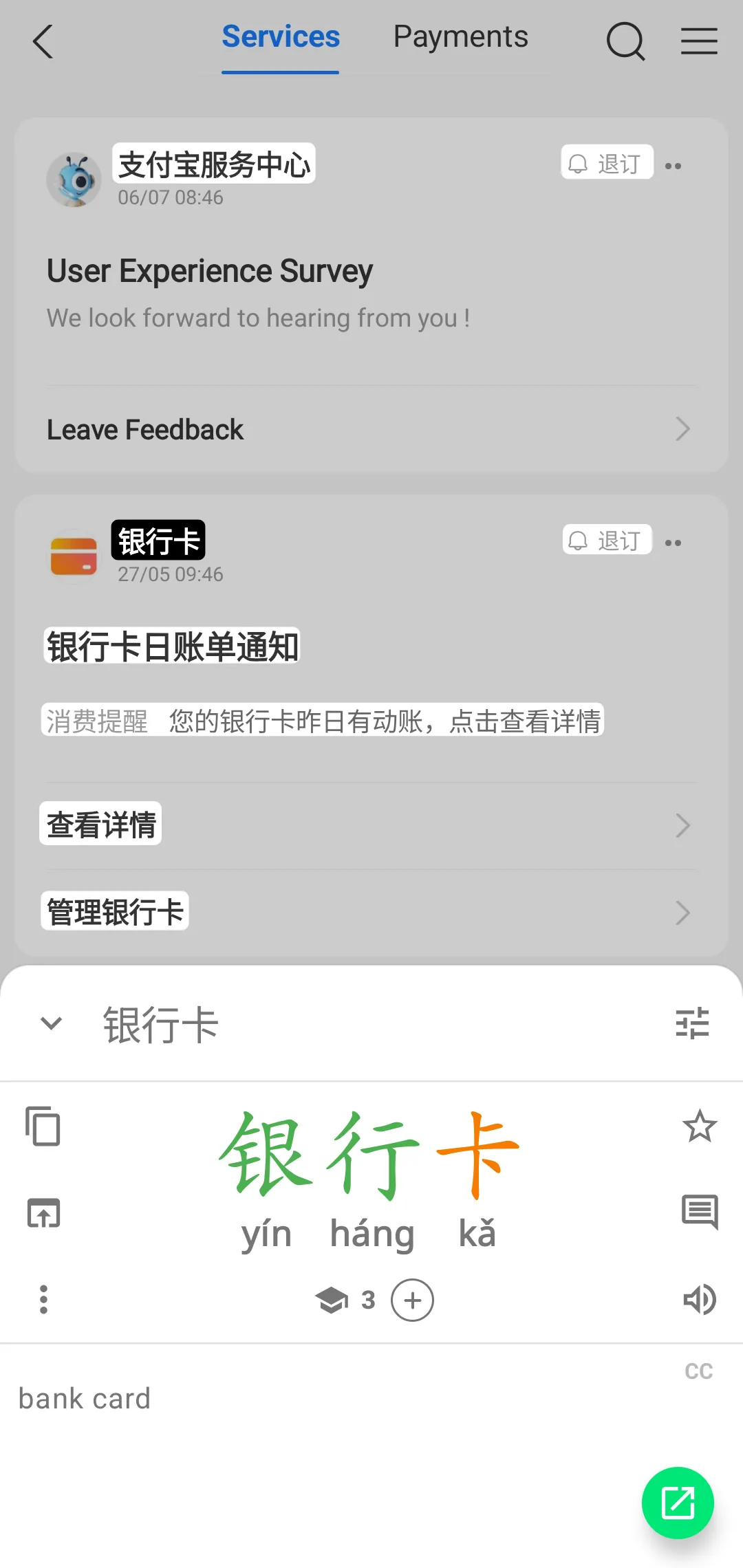
Android asks your permission to capture the screen, and a moment later the screen appears frozen, with each line of Chinese highlighted where it sits. Tap a line to look it up, just as in the Image Reader: tap a word in the title to narrow it down, or use the Translate button on a whole sentence. Press Back and you’re right where you were.
To add the tile, open Image & Document Reader from the navigation drawer and tap the Read Screen tip (Android 13 and later), or edit your Quick Settings tiles and drag Hanping’s Read Screen tile in. The Screen Reader needs Android 11 or later. iOS doesn’t let one app read another app’s screen, so it’s Android only.
The capture is read on your device and isn’t kept unless you ask for it. To keep one, read it with a band, or open its text in the Document Reader, tap Open in Hanping to take it into the Image Reader, where you can save it to history.
It works on anything with Chinese on it, a map included, and in landscape the entry opens beside the frozen screen rather than below it. Here 太和殿 is the Forbidden City’s Hall of Supreme Harmony.
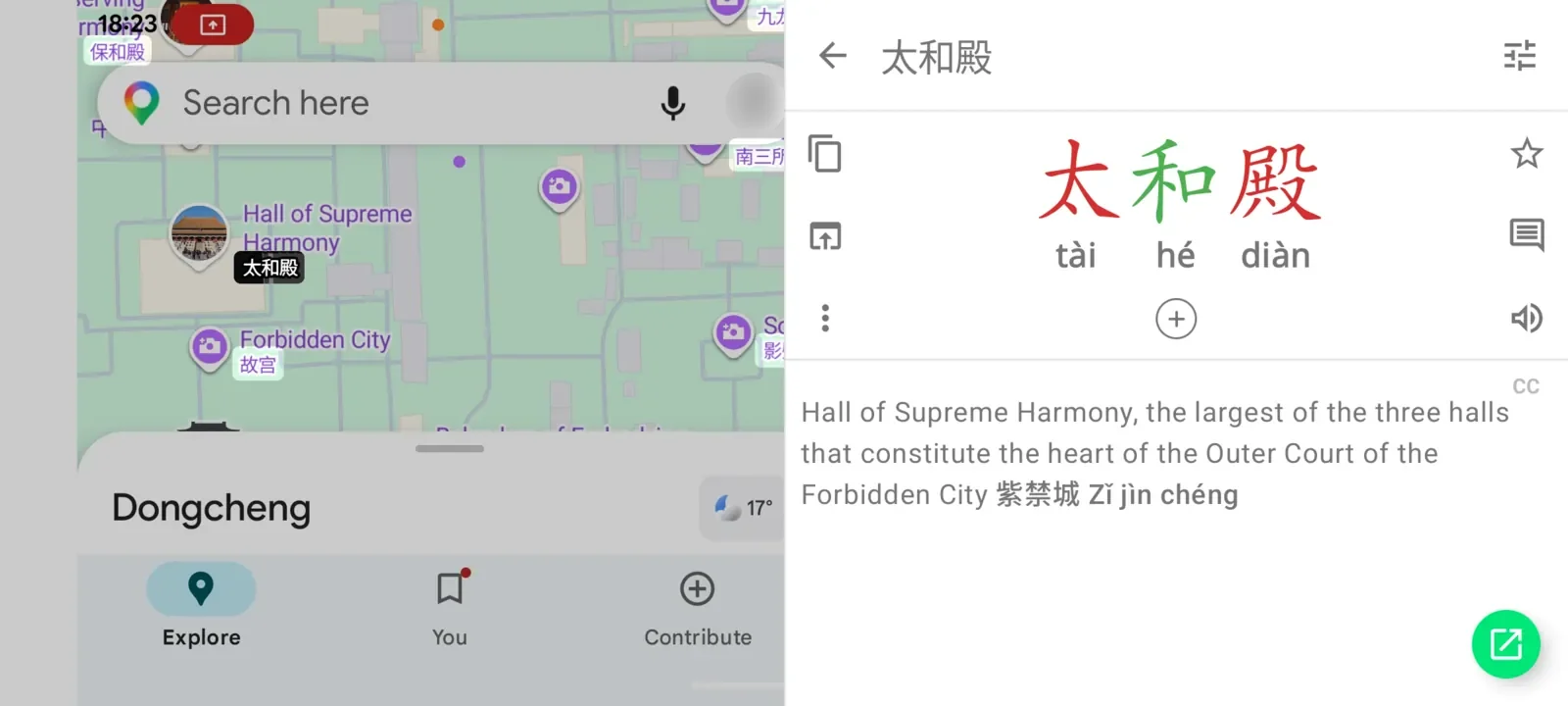
Map: Google Maps
The Screen Reader comes with the Image Reader purchase, so there’s nothing extra to buy, and if you haven’t bought it yet, your captures count toward the same three free images. See the documentation for more.
One screen for both readers
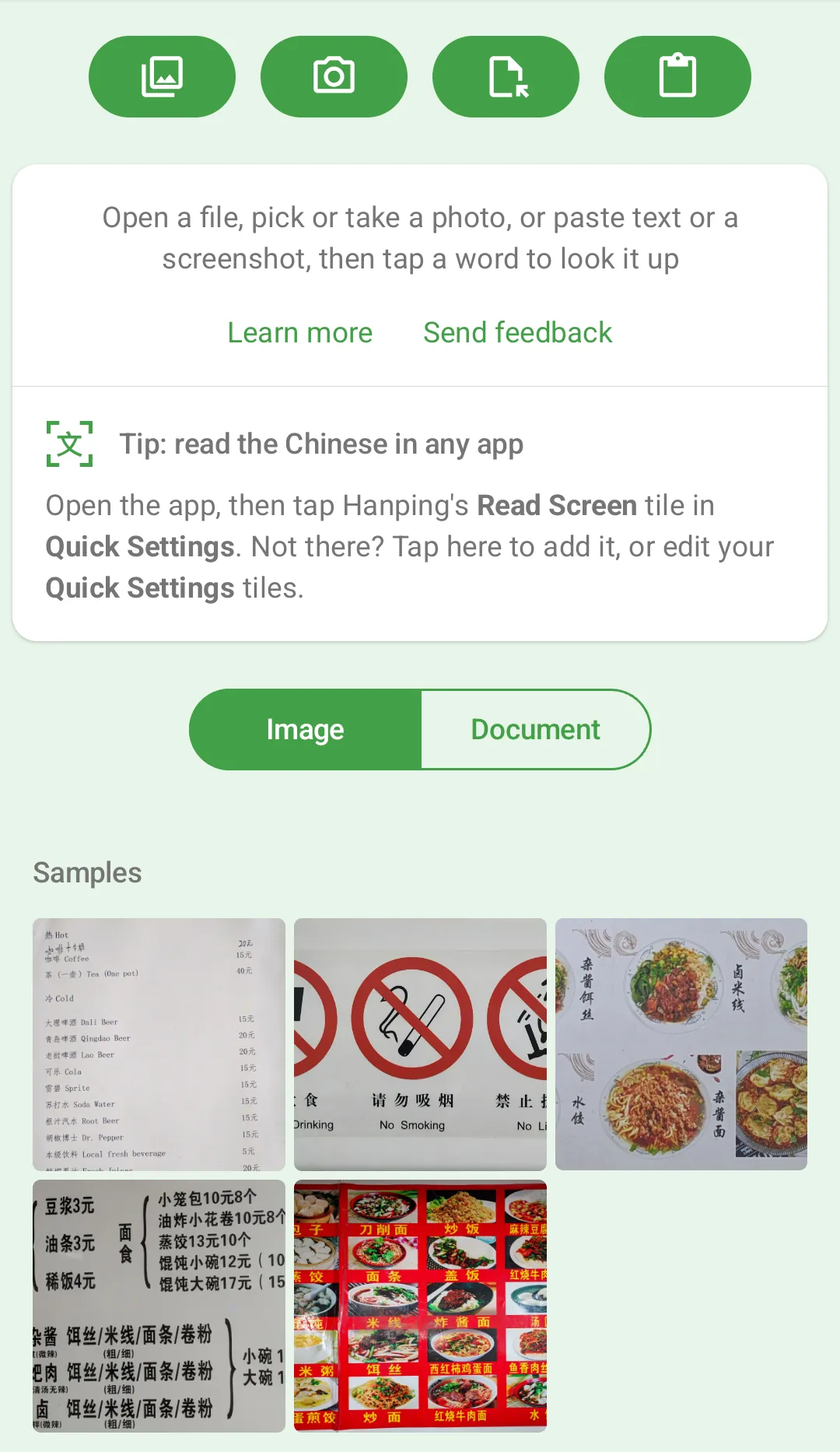
The Image Reader and the Document Reader now share one screen, Image & Document Reader in the navigation drawer. One row of buttons picks an image, takes a photo, opens a file, or pastes whatever is on the clipboard, whether that’s text or a screenshot. Underneath, the Image | Document switch shows that reader’s recent items and samples.
- Open file now accepts images too, and sends them to the Image Reader
- A
.txtfile opened with or shared to Hanping now goes straight to the Document Reader, instead of asking whether to import it as vocab
Other improvements in this release:
- Theming fixes: surfaces, selections and dividers now use Hanping’s own colors throughout
- Download buttons (handwriting, the on-device translator and the Image Reader’s models) show the download size beforehand, and stay in place with a spinner while downloading
- Bug fixes and stability improvements
Get Hanping Chinese Dictionary on Google Play Store and Apple App Store
Get Hanping Cantonese Dictionary on Google Play Store and Apple App Store
I read every message, so please get in touch with your feedback.